

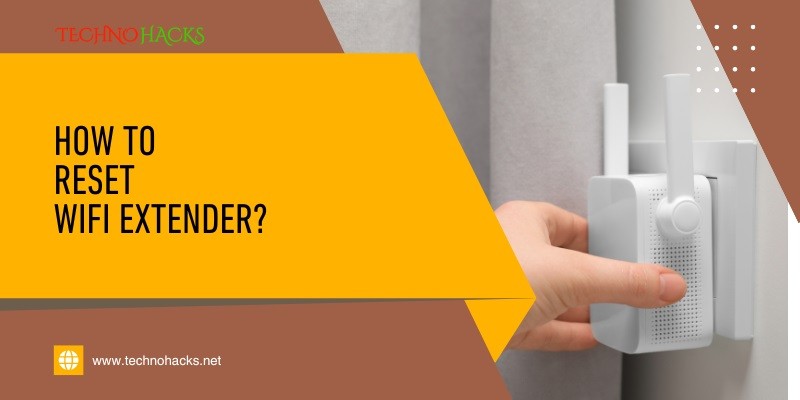
How To Reset Wifi Extender?
Last Updated on September 6, 2025 by Jim C.
To reset a WiFi extender, locate the reset button and hold it for about 10 seconds. This restores factory settings.
Resetting a WiFi extender can resolve connectivity issues and improve network performance. Many users face challenges with their WiFi extenders, such as poor signal strength or connection drops. Knowing how to reset the device can be a quick fix for these common problems.
The process is straightforward and typically involves pressing a small button on the extender. This action resets the device to its original factory settings, making it ready for reconfiguration. Whether experiencing frequent disconnections or attempting to set up a new network, resetting the extender can be a crucial step.
Reasons To Reset Wifi Extender
Resetting your wifi extender can solve many common issues. This action can help restore your network’s performance and connectivity. Below are some of the main reasons to reset your wifi extender.
Performance Issues
Sometimes, your wifi extender might experience performance issues. These issues include slow internet speed or lag. Resetting the extender can often fix these problems.
- Slow internet speed
- Lag during online activities
- Intermittent connectivity
A reset can clear temporary glitches and enhance your wifi performance. This is important to maintain a smooth online experience.
Connection Problems
Your wifi extender might face connection problems. These problems could be frequent disconnections or inability to connect to the main router. Resetting the wifi extender can often resolve these issues.
| Problem | Solution |
|---|---|
| Frequent disconnections | Reset the wifi extender |
| Cannot connect to router | Reset the wifi extender |
By resetting the extender, you can establish a fresh connection. This helps in stabilizing the network and reducing connection drops.
Preparation Steps
Resetting your WiFi extender involves several preparation steps. Completing these steps ensures a smooth process. Below are crucial steps to follow.
Backup Settings
Before resetting, backup your current settings. This helps restore them if needed. Here’s how to do it:
- Log in to the extender’s web interface.
- Go to the settings menu.
- Find the backup option.
- Click on “Backup Settings”.
- Save the backup file to your computer.
Backing up settings avoids configuration loss. It’s a critical step.
Gather Necessary Tools
Ensure you have all necessary tools ready. Here’s a list of what you need:
| Tool | Description |
|---|---|
| Paperclip | To press the reset button |
| Computer | To access the web interface |
| WiFi Extender Manual | For specific instructions |
Gathering these tools beforehand saves time. You’ll be ready to reset the extender.
Reset Methods
Resetting your wifi extender can solve many connectivity issues. It can help if your device is unresponsive or not connecting properly. Here are some reset methods that you can use.
Using Reset Button
Most wifi extenders come with a physical reset button. Follow these steps to reset using the button:
- Locate the reset button on your wifi extender.
- Use a paperclip or pin to press the button.
- Hold it for about 10 seconds.
- Release the button and wait for the extender to restart.
After the restart, the extender will be set to its default settings. You can now reconfigure it.
Through Web Interface
You can also reset your wifi extender through its web interface. This method requires access to the extender’s settings page. Follow these steps:
- Open a web browser and type the extender’s IP address.
- Log in using your admin credentials.
- Navigate to the settings or maintenance section.
- Find and select the reset option.
- Confirm the reset action.
The extender will restart and return to its default settings. You can now set it up again.
| Method | Ease of Use | Requirements |
|---|---|---|
| Using Reset Button | Easy | Paperclip or Pin |
| Through Web Interface | Moderate | Web Browser, Admin Credentials |
Choose the method that suits you best. Both methods will reset your extender effectively.
Reconfiguring The Extender
Reconfiguring a WiFi extender is crucial to ensure optimal performance. This process involves accessing the setup page and entering network details. Follow these simple steps to reconfigure your WiFi extender efficiently.
Accessing Setup Page
First, connect your device to the extender’s network. Open a web browser and enter the extender’s IP address in the address bar. Common IP addresses include 192.168.1.1 or 192.168.0.1. You will be prompted to enter a username and password. Default credentials are usually admin for both fields.
Entering Network Details
Once logged in, navigate to the wireless settings section. You will need to enter your router’s SSID and password. Make sure to match the security settings of your main router. Save the settings and restart the extender.
Here is a table summarizing the steps:
| Step | Action |
|---|---|
| 1 | Connect to extender’s network |
| 2 | Open web browser |
| 3 | Enter IP address |
| 4 | Log in with credentials |
| 5 | Navigate to wireless settings |
| 6 | Enter SSID and password |
| 7 | Save and restart |
Post-reset Tips
After resetting your WiFi extender, it’s essential to follow some post-reset tips to ensure everything works smoothly. Here are a few key steps to help you get your WiFi extender back to optimal performance.
Testing Connectivity
Once the reset is complete, test the connectivity of your WiFi extender. You can do this by:
- Connecting a device to the extender’s network.
- Checking the signal strength on your device.
- Running a speed test to measure internet speed.
If the connection is weak, try moving closer to the extender.
Ensuring Optimal Placement
Proper placement of your WiFi extender is crucial for optimal performance. Follow these tips:
- Place the extender halfway between your router and the dead zone.
- Avoid placing the extender near large metal objects.
- Keep it away from microwaves and cordless phones.
Use the WiFi signal strength indicator on your device to find the best spot.
Frequently Asked Questions
How To Reset A Wifi Extender?
Press and hold the reset button for 10 seconds.
Where Is The Reset Button On Wifi Extender?
Usually on the side or bottom of the device.
Can I Reset My Wifi Extender Remotely?
No, you must press the physical reset button.
Will Resetting My Wifi Extender Improve Performance?
Yes, it can resolve connectivity issues and improve performance.
Do I Need To Reconfigure After Resetting?
Yes, you need to set up the extender again.
How Often Should I Reset My Wifi Extender?
Reset only when you experience connectivity issues.
Conclusion
Resetting your WiFi extender can enhance your internet connectivity. Follow the outlined steps for a smooth reset process. Properly resetting ensures optimal performance and speed. Don’t forget to secure your network post-reset. Enjoy seamless browsing and streaming with a well-configured extender.
Stay connected and troubleshoot effectively with these simple tips.
About the Author Jim C.
Jim C. Clark is the lead tech blogger at TechnoHacks.net, where he delivers insightful content across a wide range of digital topics. With a keen interest in emerging technology and practical tools, Jim writes in-depth articles on AI, Python, software, and the latest apps. He also shares expert advice on freelancing, digital marketing, SEO, and business growth strategies. Known for his clear, engaging writing style, Jim breaks down complex concepts into actionable insights. Whether he's recommending the best free tools 🧰 or explaining “how to” guides, Jim’s goal is to empower readers with the knowledge they need to thrive in the digital world.